
MULTI-LOCATION WEBSITES

One website for every location.
Each one gets its own page.

Give every location its own page with hours, phone and directions, and let customers find the nearest one on a map by ZIP code or city. Manage them all from one panel, included with Growth, Premium and Ultra.

  • A page for every location
  • Store locator by ZIP code or city
  • Location pages never count toward your page limit
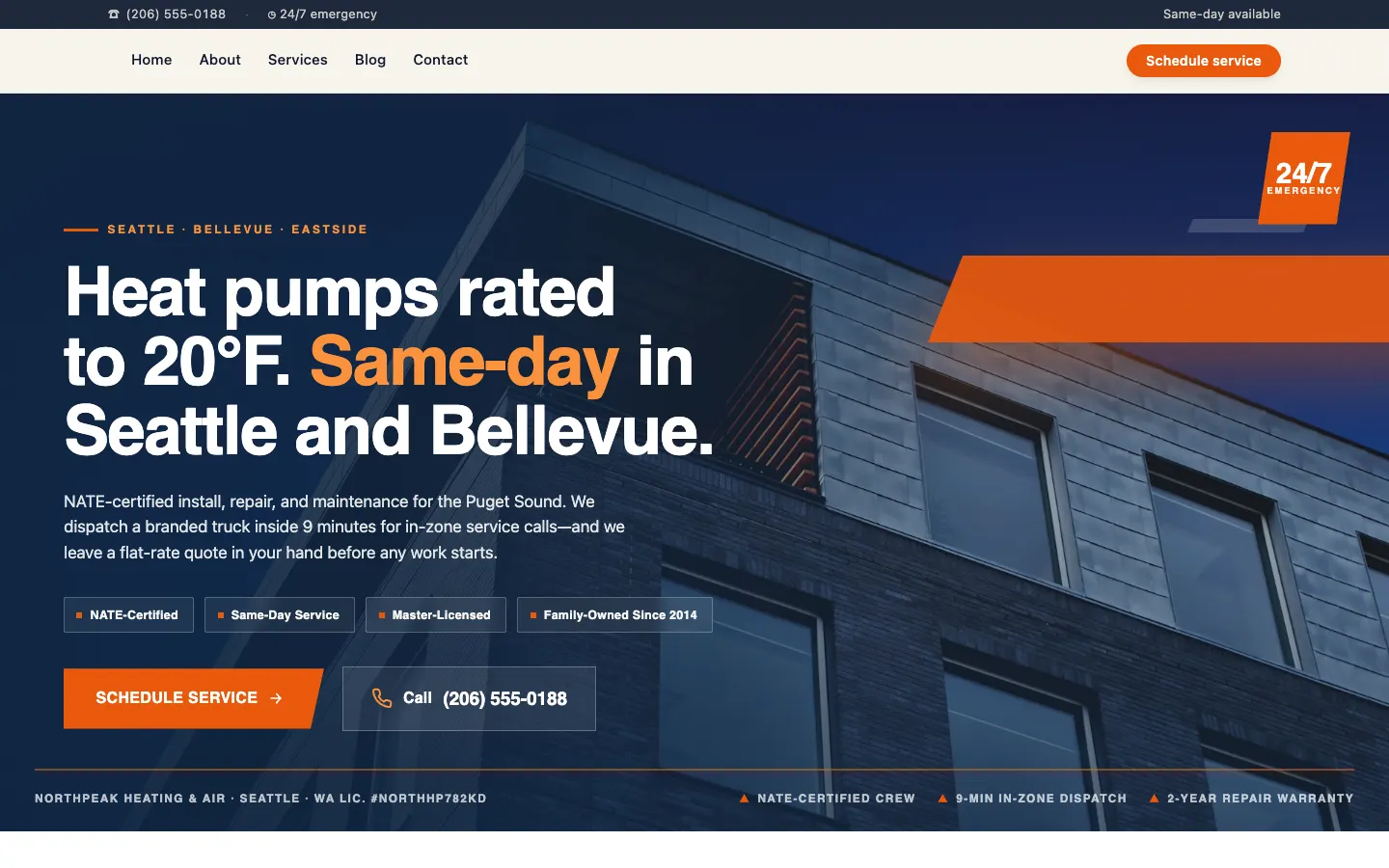
NorthPeak Heating & Air website, built by WorkspaceCMS
Nearest location2.4 mi away, open today
Its own page/locations/downtown
Full-screen view
How it works

Add your locations once. Your site does the rest.

  1. Add each location

    Type the name and start typing the address, then pick it from Google's suggestions. Add the phone, email, hours and a photo.

  2. Publish the group

    Your locations stay in draft until you publish. Nothing shows on your site before you are ready.

  3. Customers find the nearest one

    Your site shows a map and a list. Visitors search by ZIP code or city, or tap Use my location, and see what is close.

Store locator

How do customers find their nearest location?

A map and a list sit together on your site. A visitor types their ZIP code or city and the locations within reach come up, closest first.

  • Search by ZIP code or city, or let the visitor share their location with one tap.
  • They choose how far to look: 5, 10, 25, 50 or 100 miles.
  • Results are sorted by distance, with the miles shown on each location.
  • Every location shows its address, a tap-to-call phone number and today's hours.
  • Get directions opens Google Maps with the route already filled in.
  • View details goes straight to that location's own page.
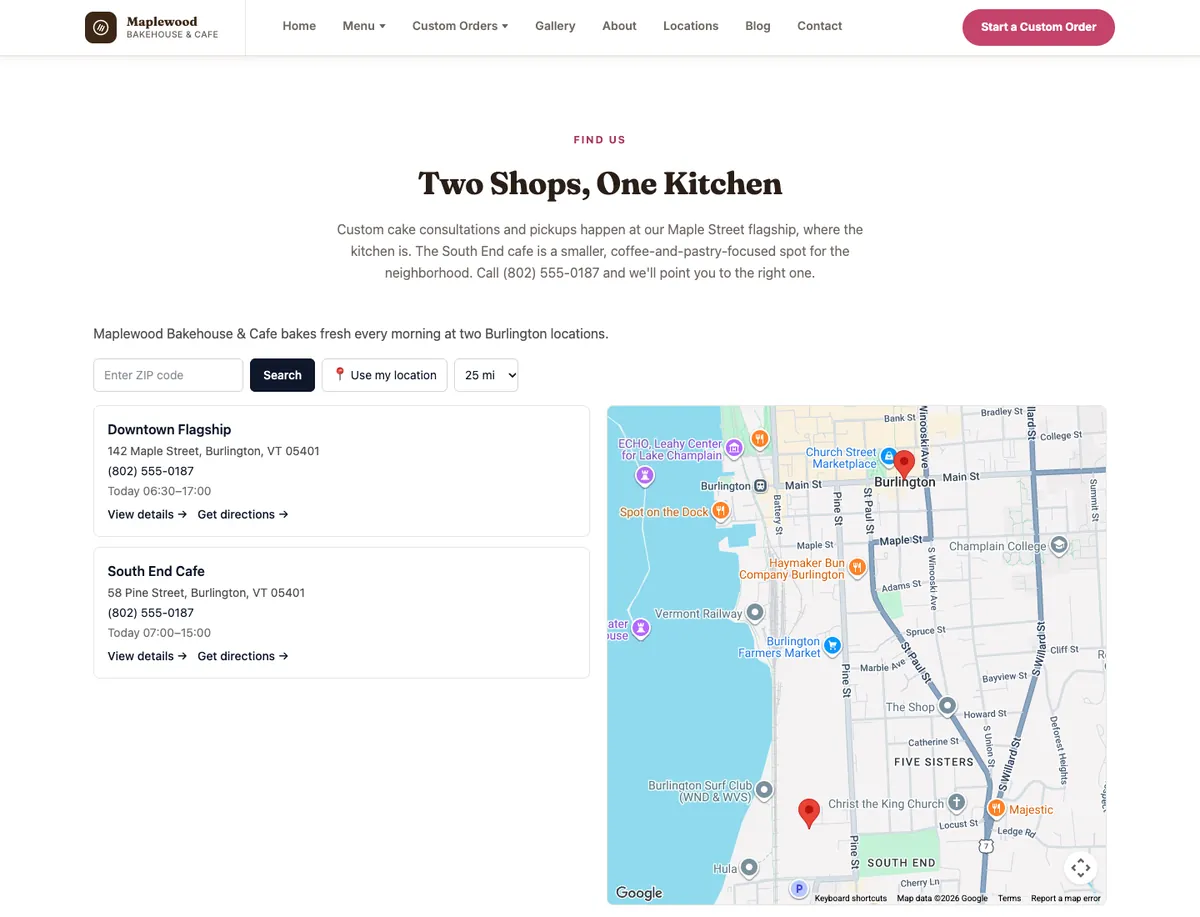
The store locator on the Maplewood Bakehouse & Cafe demo site: a ZIP code search, Use my location and a radius picker above two shops, each with its address, phone, today's hours, View details and Get directions, next to a map with both shops pinned
The store locator on our Maplewood Bakehouse & Cafe demo site, a sample site built on WorkspaceCMS. Its two shops are managed from the dashboard’s Locations panel.
Location pages for SEO

A real page for every location, not just a pin on a map.

Someone searching for your business in one town should land on the page for that town. Each location gets a page of its own, linked from the locator, with a title and description that name the location and its address. The page carries that location’s business details for Google and is listed in your sitemap.

  • Its own web address, like /locations/downtown, which you can change.
  • Its own page title and search description, written from the location's name, address and phone.
  • The full address, a photo, phone, email and website.
  • Opening hours for every day of the week.
  • A map and a Get directions button.
  • Local business details for Google on the page itself: the location's address, phone, hours and map position.
  • Listed in your site's sitemap, so Google can find every location page.
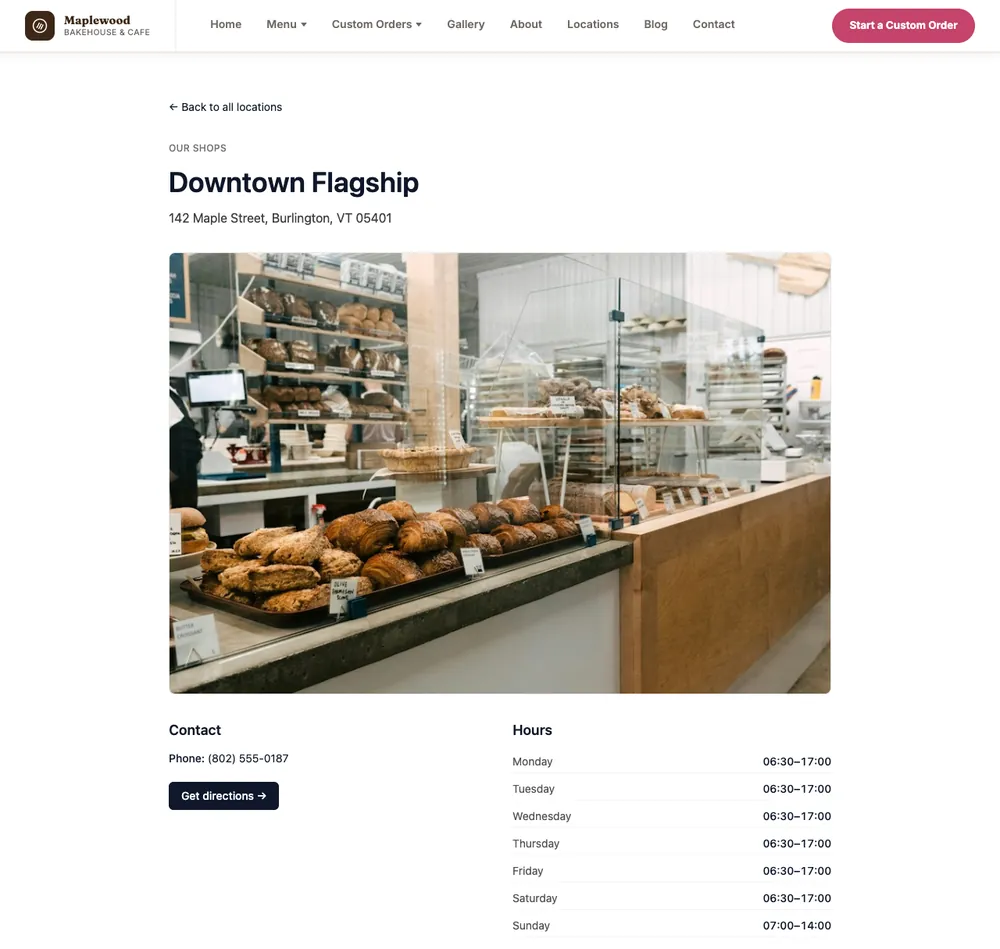
The Downtown Flagship location page on the Maplewood Bakehouse & Cafe demo site, showing its address, a photo, phone, Get directions and opening hours for every day
A location page on our Maplewood Bakehouse & Cafe demo site, a sample site built on WorkspaceCMS.
What you control

Built for businesses with more than one address.

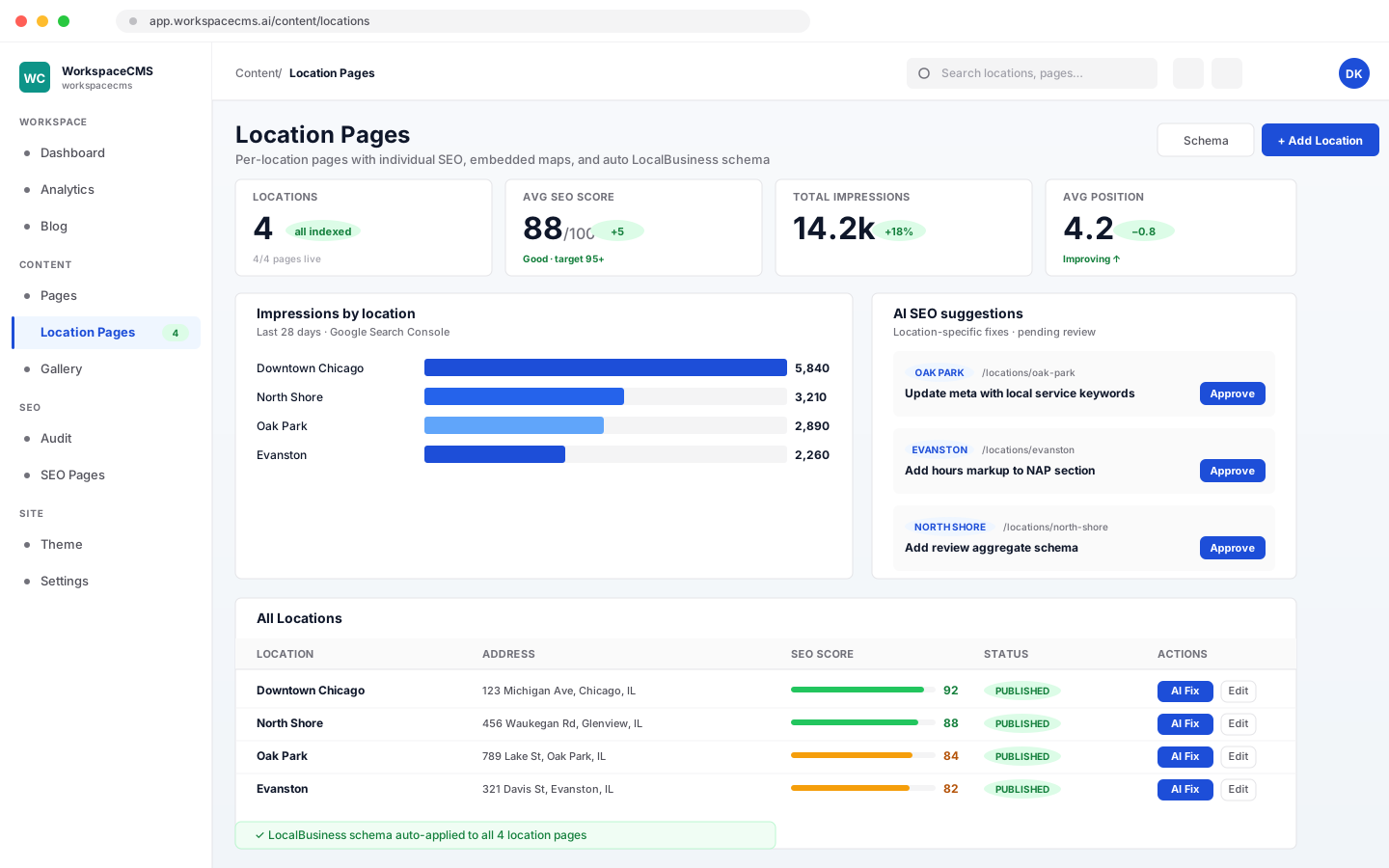
Illustration of the Locations panel in the WorkspaceCMS dashboard: a group of four locations you can drag to reorder and edit, an AI-written group intro, and a preview of the store locator visitors see
An illustration of the Locations panel in your dashboard, where every location is added and edited.
One panel

Every location, managed in one place.

  • Add, edit and archive locations from one list in your dashboard.
  • Drag them into the order you want. The map and list follow it, so put your flagship first.
  • Change a phone number or hours once and the map, the list and the location's page all update.
Hours and phone

Each location keeps its own details.

  • Set opening hours day by day, separately for every location.
  • Give each location its own phone number and email.
  • Choose your business time zone, so the “today” hours match your clock, not the visitor's.
  • Turn the search bar or today's hours off if you do not want them shown.
Groups

Different sets of locations on different pages.

  • Most businesses need one group. You can make more, like stores and warehouses.
  • Show each group on its own page with its own map.
  • Each group has a short intro that shows above its map and list.
  • AI can write that intro for you in your brand voice, for 5 AI credits.

Your business details for Google, filled in from a location

Your site tells Google who you are and where you are through its business details (Organization or LocalBusiness). The schema editor can fill in the address, phone and email from whichever location you pick, so you are not typing them twice. Those details apply across your whole site, and each location page adds its own local business details on top, pointing back to them. More on the SEO tools.

Which plans include it

Location pages come with Growth, Premium and Ultra.

Add as many locations as you run. Their pages never use up your page limit.

Growth

Location pages and store locator
Included
Page limit (location pages do not count)
25 pages
AI credits every month
400
See Growth →

Premium

Location pages and store locator
Included
Page limit (location pages do not count)
Unlimited
AI credits every month
1,200
See Premium →

Ultra

Location pages and store locator
Included
Page limit (location pages do not count)
Unlimited
AI credits every month
1,600
See Ultra →

Location pages are not part of Essentials. Compare every plan, see what every AI action costs, or browse all the tools. Want customers to book a visit too? See online booking.

FAQ

Multi-location questions,
answered.

Does each location get its own page?

Yes. Every location gets its own page at an address like /locations/downtown, with its hours, phone, email, photo, a map and directions. The page title and search description are written from that location's own name, address and phone.

Do location pages count toward my plan's page limit?

No. Location pages are built from your location list, so adding locations never uses up pages. Only the page you put the map on counts, like any other page. Growth allows 25 pages, and Premium and Ultra are unlimited.

How do customers find the location nearest to them?

The store locator on your site lets them type a ZIP code or city, or tap Use my location. They choose a radius from 5 to 100 miles and see the locations inside it, closest first, with the distance on each.

Can each location have different hours and a different phone number?

Yes. Every location has its own opening hours for each day of the week, plus its own phone, email and website. Holiday or one-off hours are not supported yet, so mention those in a blog post or on the page itself.

Does each location page include LocalBusiness schema for Google?

Yes. Every location page tells Google it is a local business, with that location's name, address, phone, email, opening hours, photo and map position, whichever of those you have filled in. It is linked to your main business details when those are set, and every location page is listed in your sitemap. Your site-wide business details are set once in the schema editor, which can fill in the address, phone and email from whichever location you choose.

Can AI write my location descriptions?

AI writes the short intro that sits above your map and list, in your brand voice, for 5 AI credits each time. It does not write a separate description for every location.

Which plans include location pages?

Growth, Premium and Ultra. Essentials does not include them.

Every location, one site

Help customers find the right location.
Get a site built for all of them.

Sign up online and we build your site for you. Location pages and the store locator come with Growth, Premium and Ultra.

Want to compare plans first? see pricing